Using ECR
Create ECR Repository for Backend Image
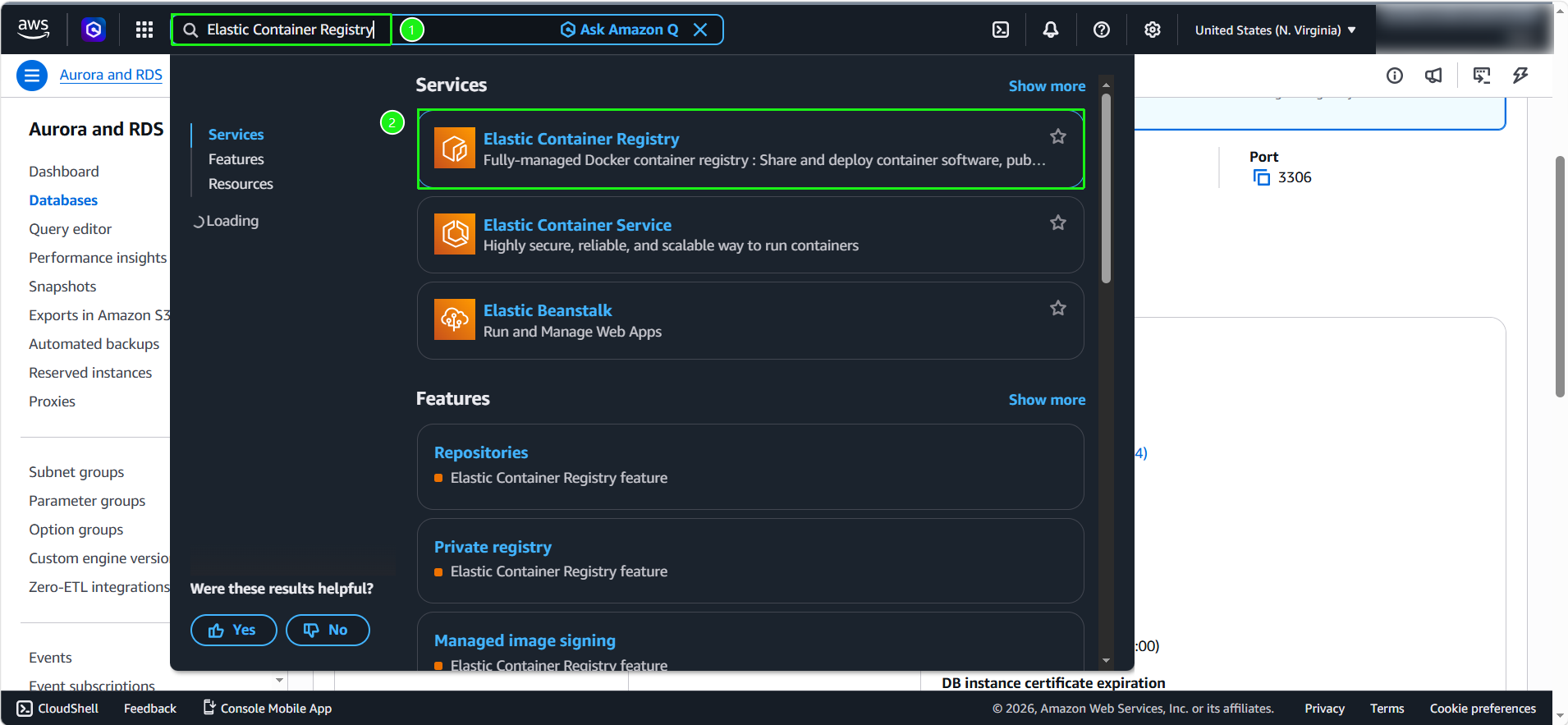
- Search for
Elastic Container Registry. Select Create
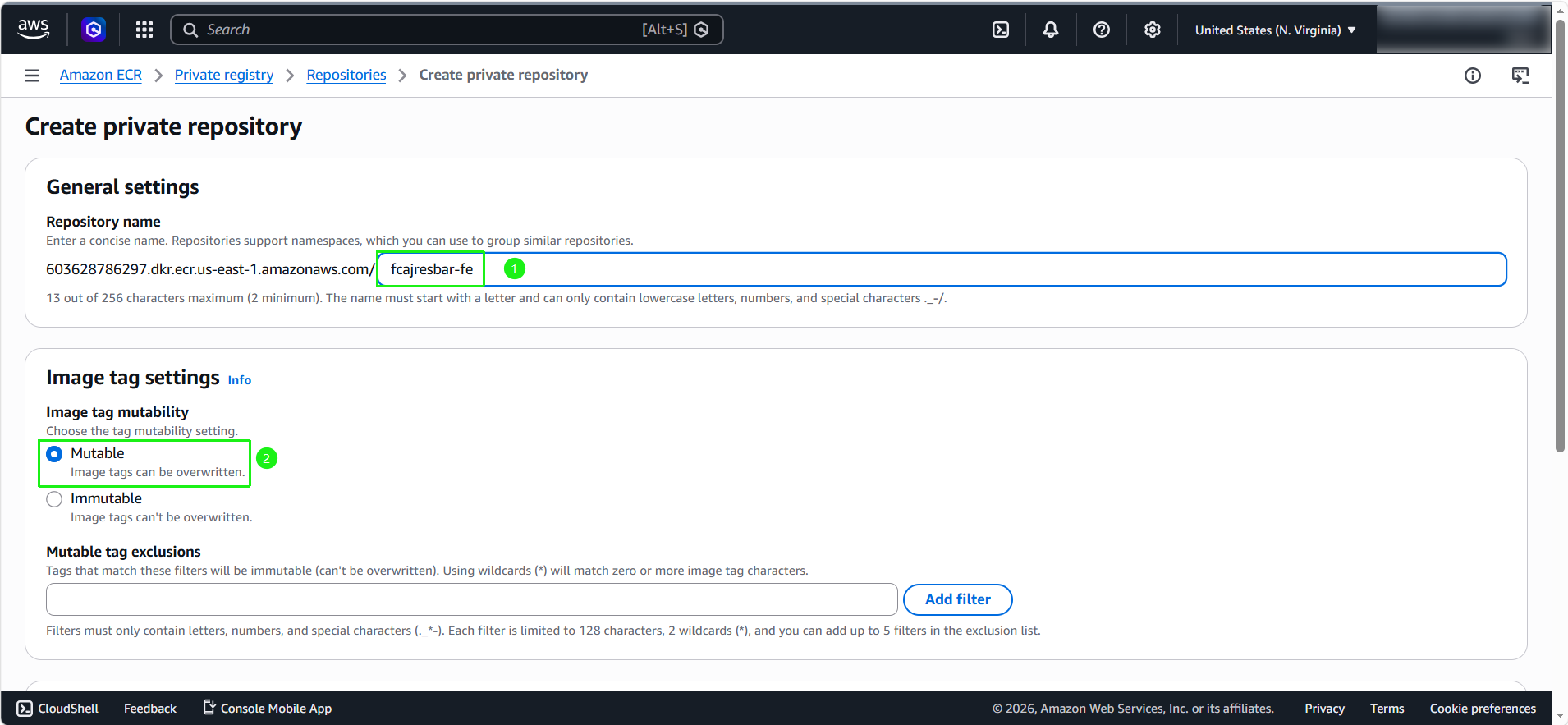
- First is to create a repository to store images for the frontend app. In the left panel, choose Repository then Create repository
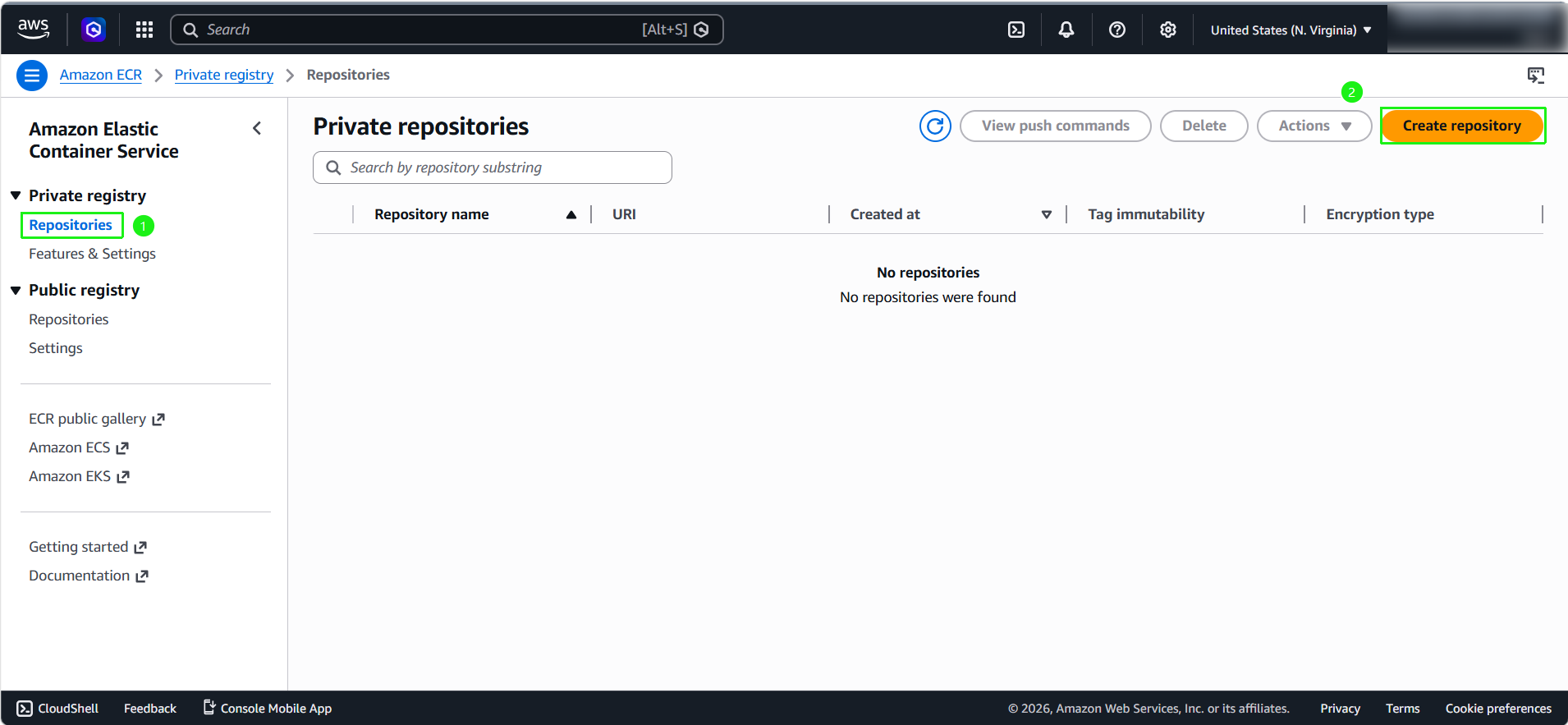
Repository name:
aws-fcaj-container-app-backend.Image tag mutability: select Mutable.
Encryption configuration: leave it as default.
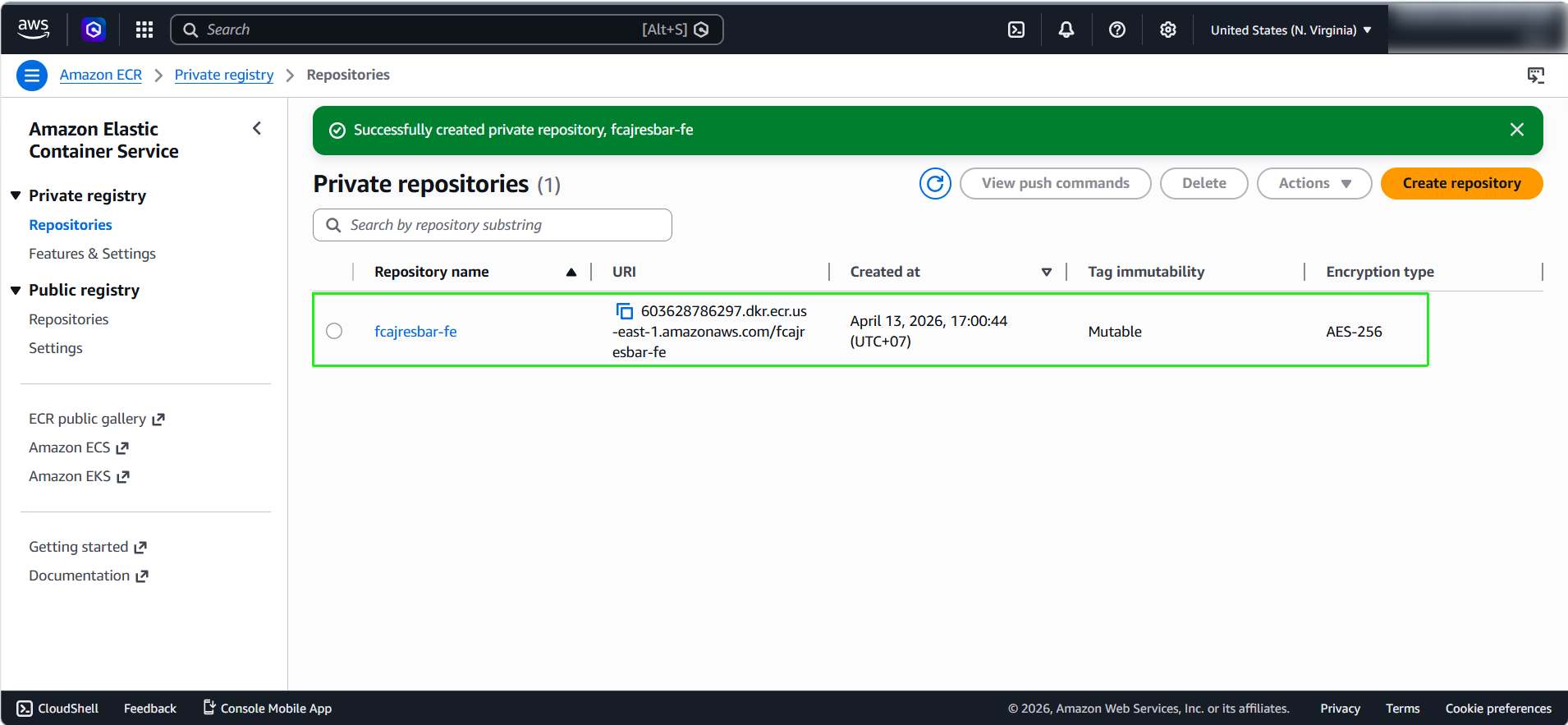
Click Create to create
- Image for the backend app created successfully.
Create ECR Repository for Frontend Image
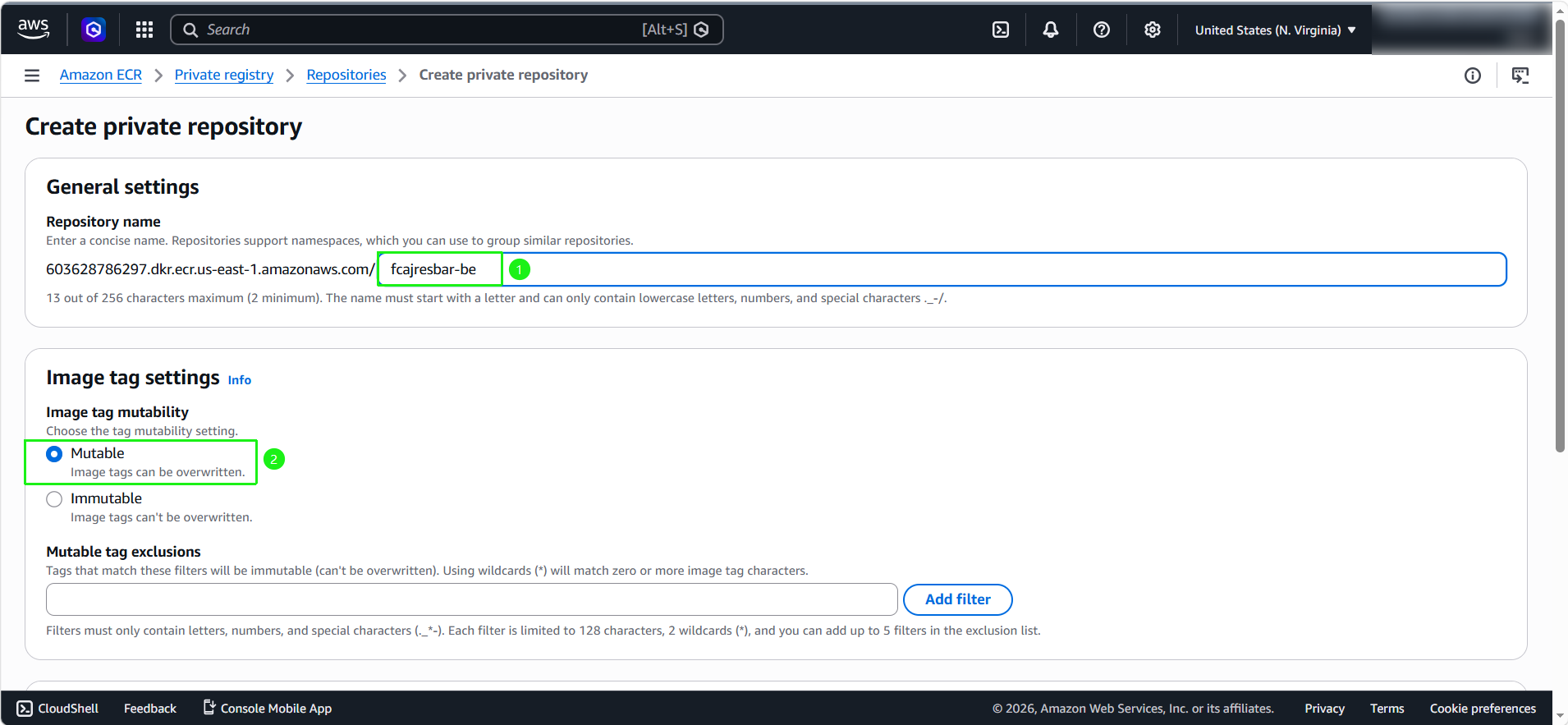
Similarly, now we will create for Frontend Image. With the following information:
Repository name:
aws-fcaj-container-app-frontend.Image tag mutability: select Mutable.
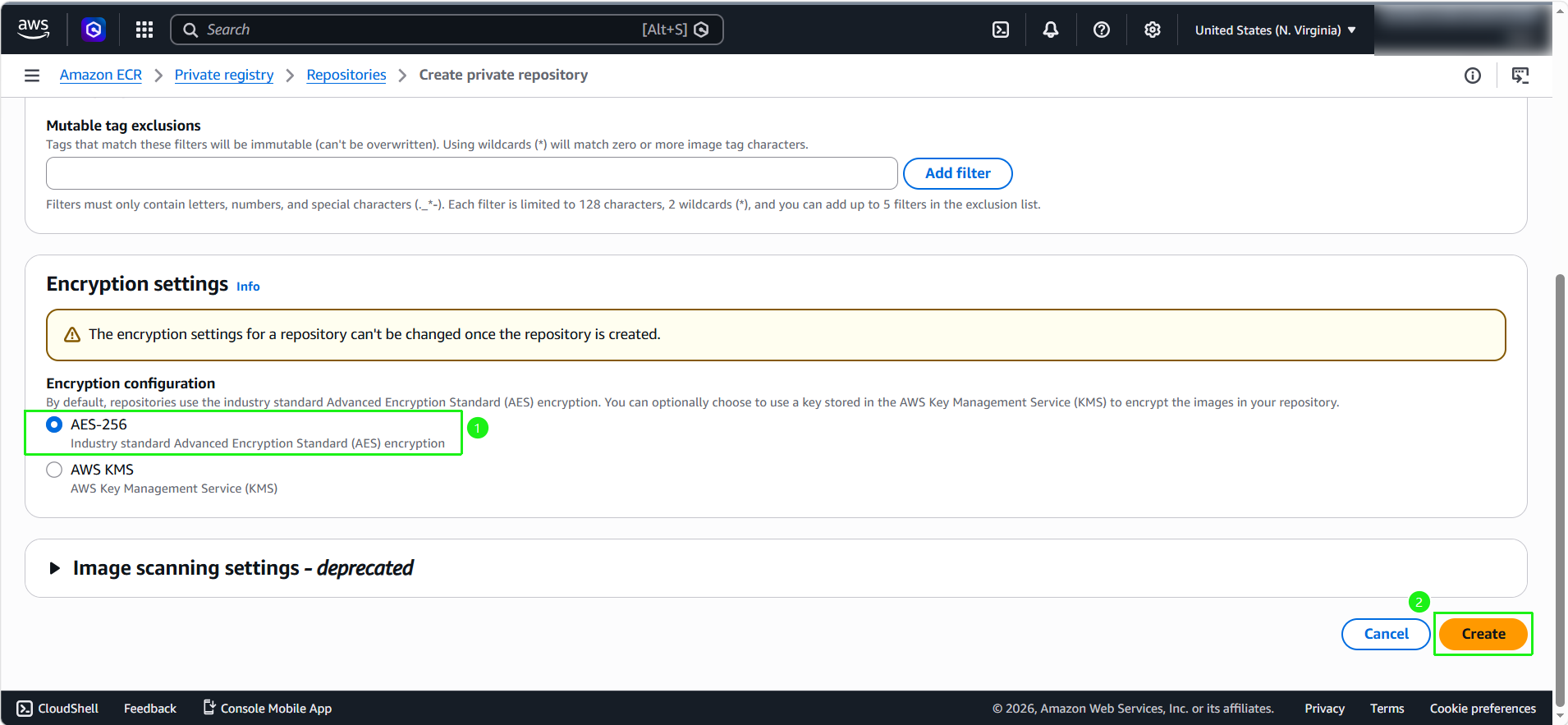
Encryption configuration: leave it as default.
Click Create to create
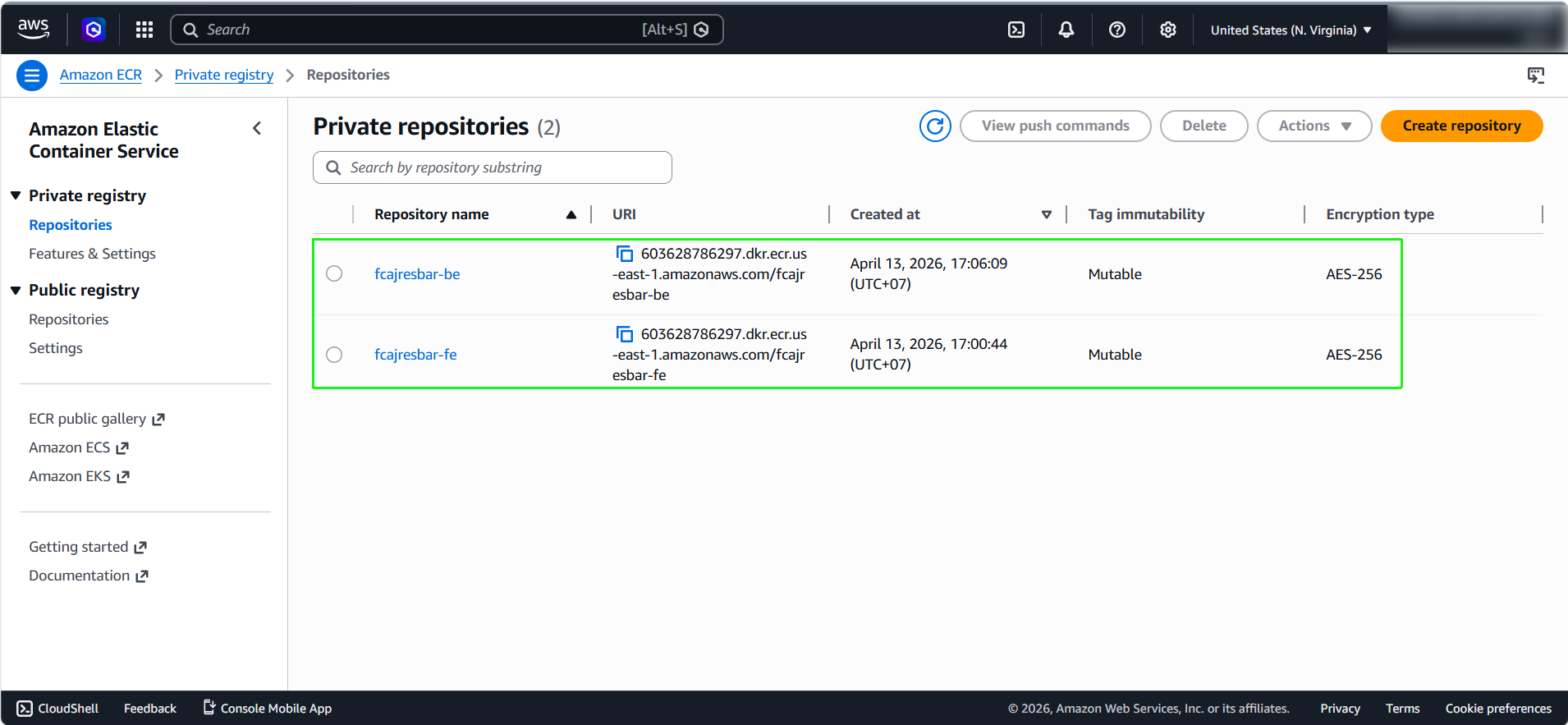
We need to create each repository for each different application to manage the version of Docker images more easily, especially for future CI/CD implementation.
Install AWS CLI
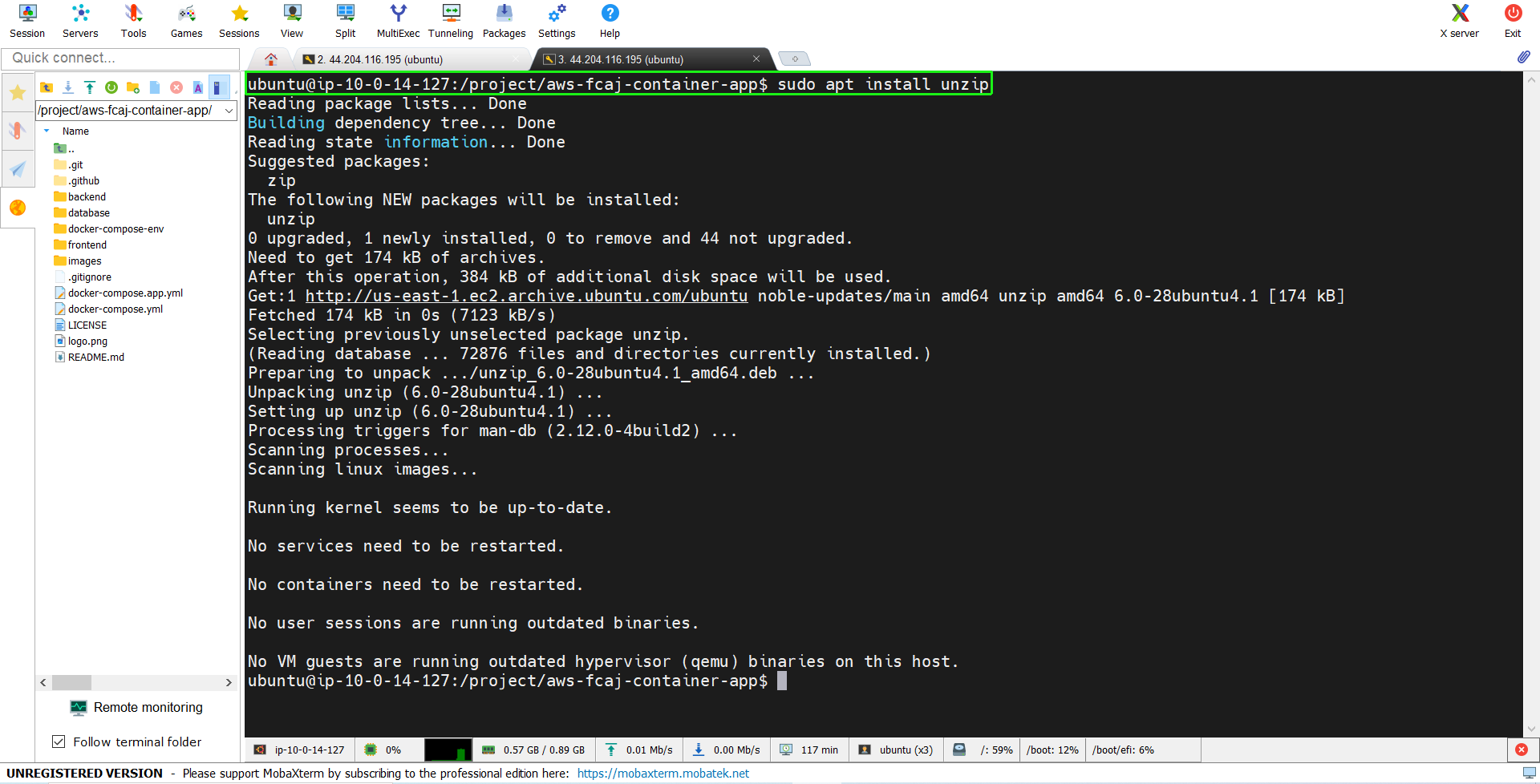
- First we need to download unzip first.
sudo apt install unzip
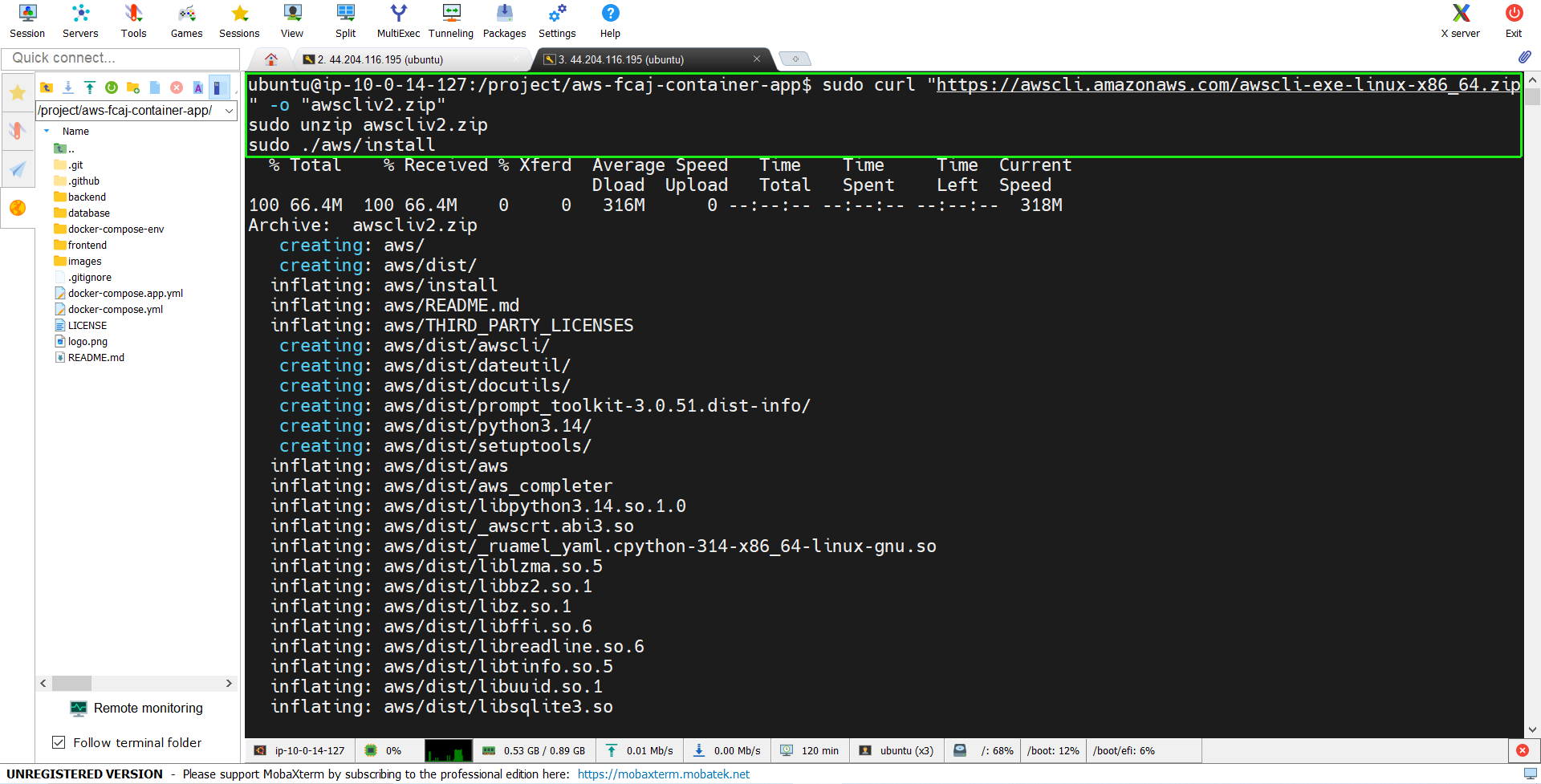
- Then we will use the commands below to install AWS CLI.
sudo curl "https://awscli.amazonaws.com/awscli-exe-linux-x86_64.zip" -o "awscliv2.zip"
sudo unzip awscliv2.zip
sudo ./aws/install
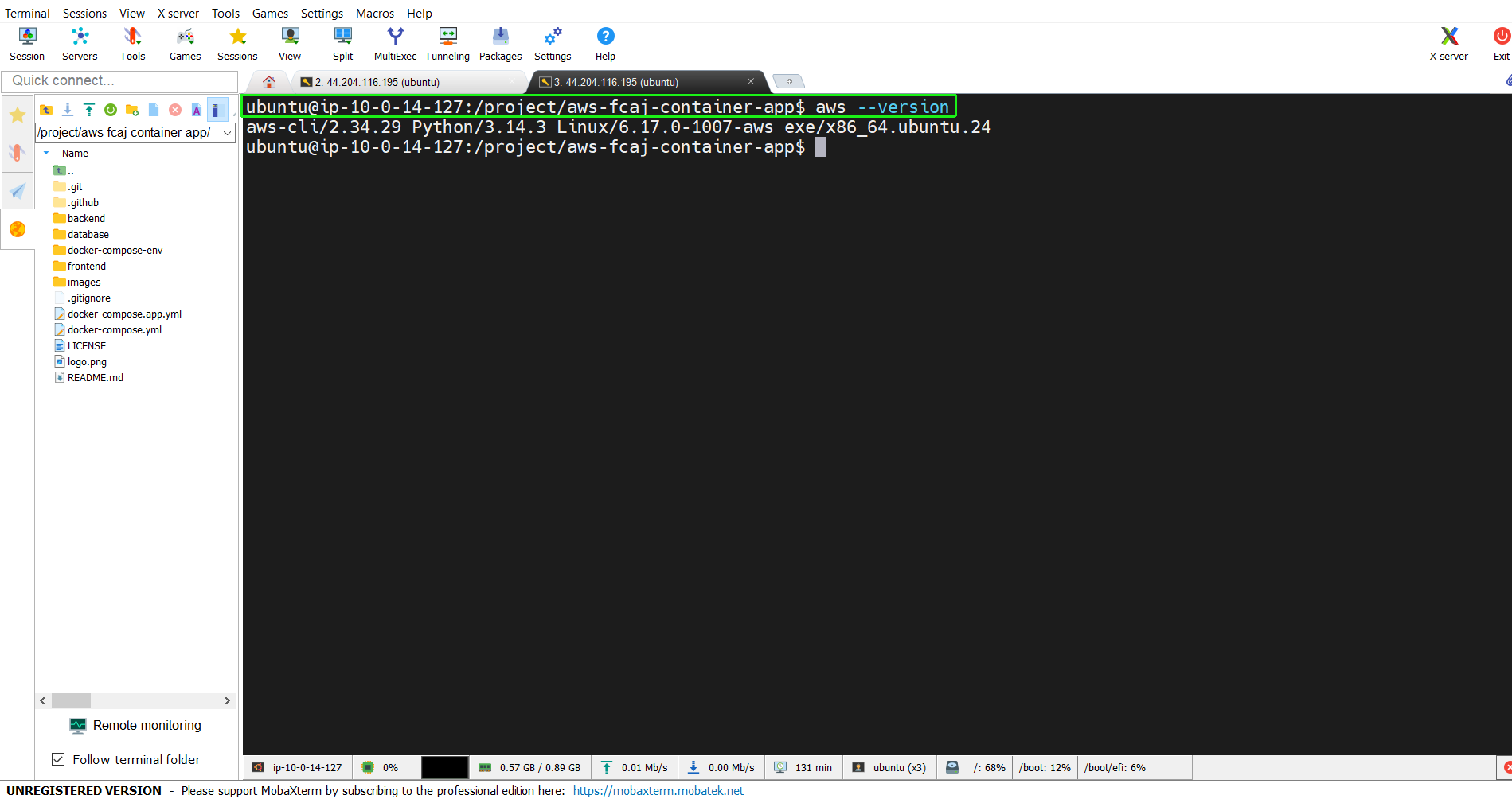
- After installation, we can check the version to confirm that AWS CLI is installed successfully.
aws --version
Push Frontend Image to ECR
- Re-enter ECR Console
- Select
aws-fcaj-container-app-frontend - Press View push commands
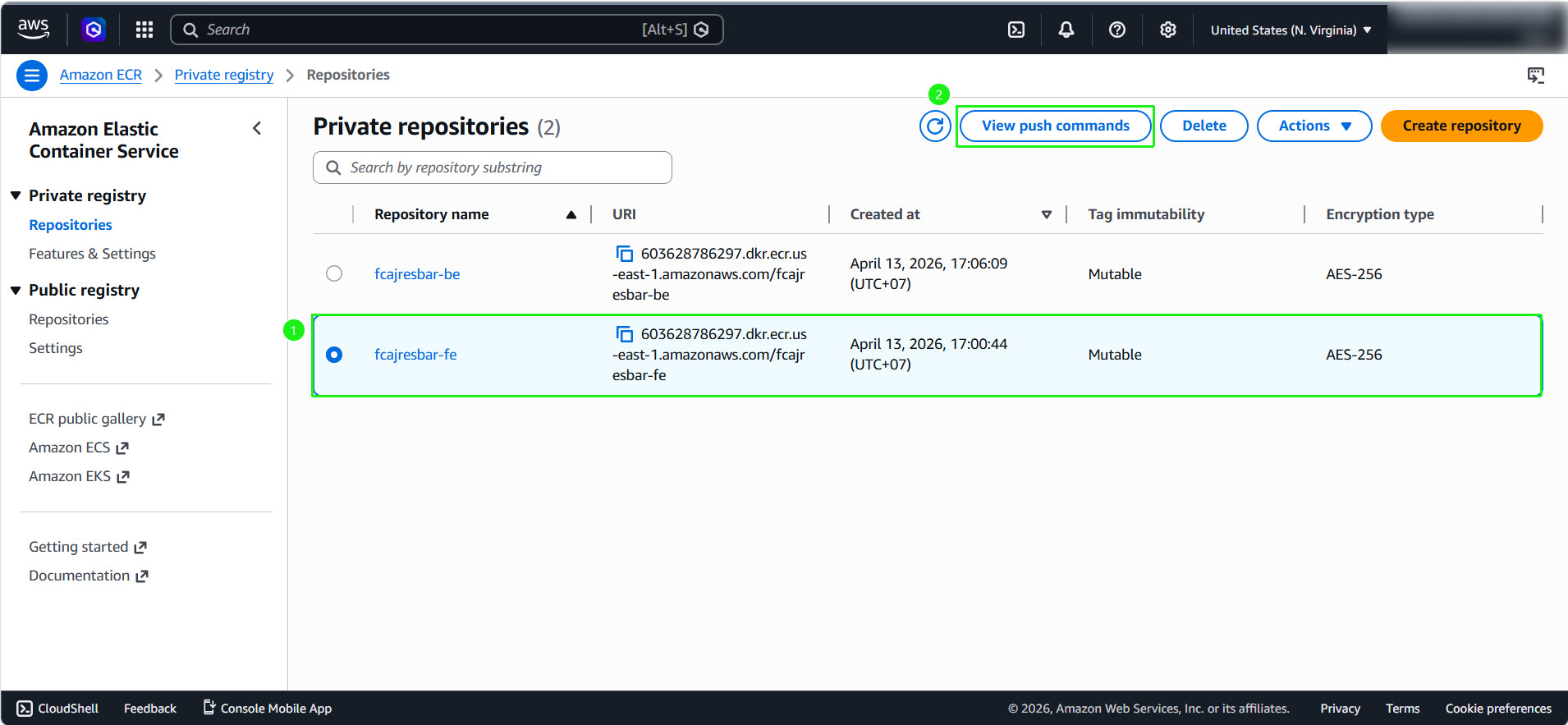
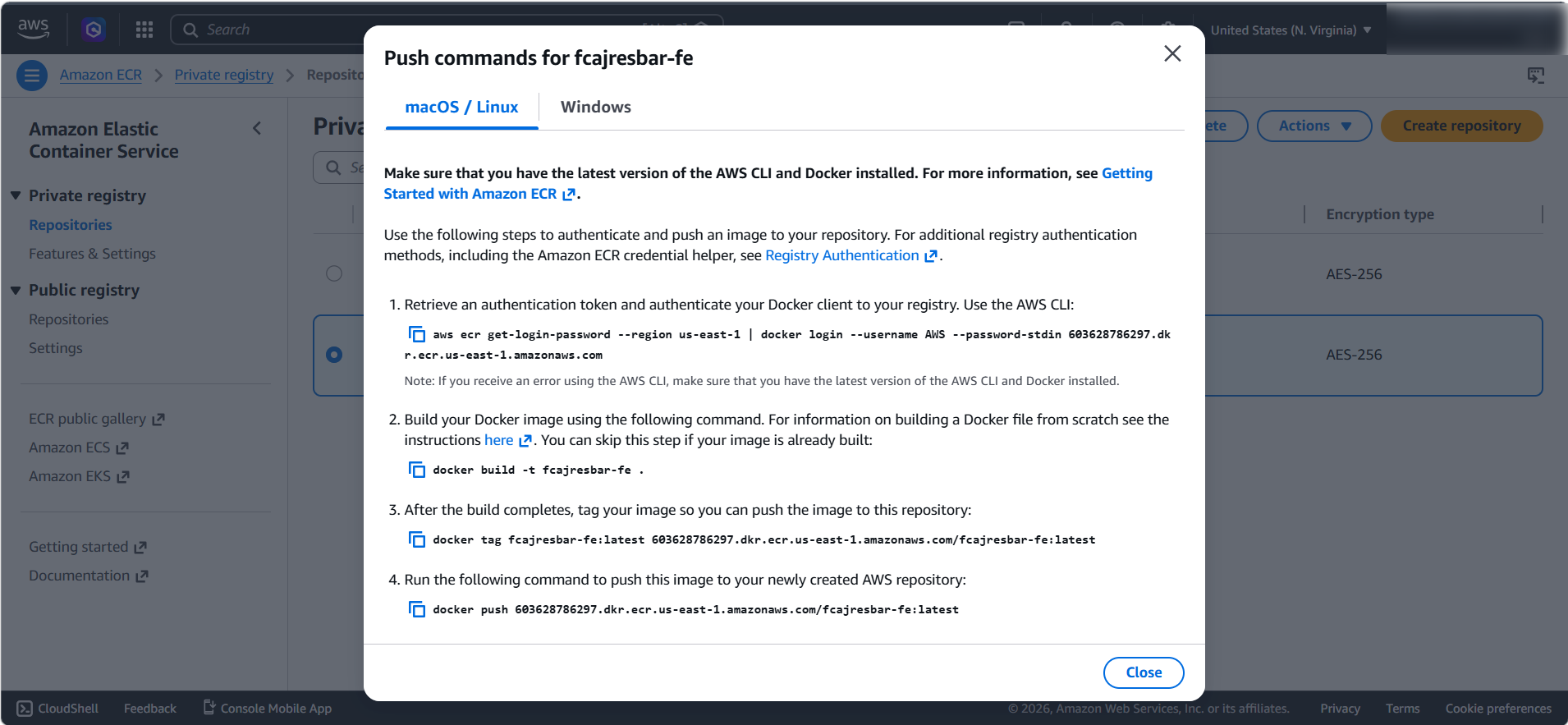
- A dialog box will pop up and we can see a series of commands.
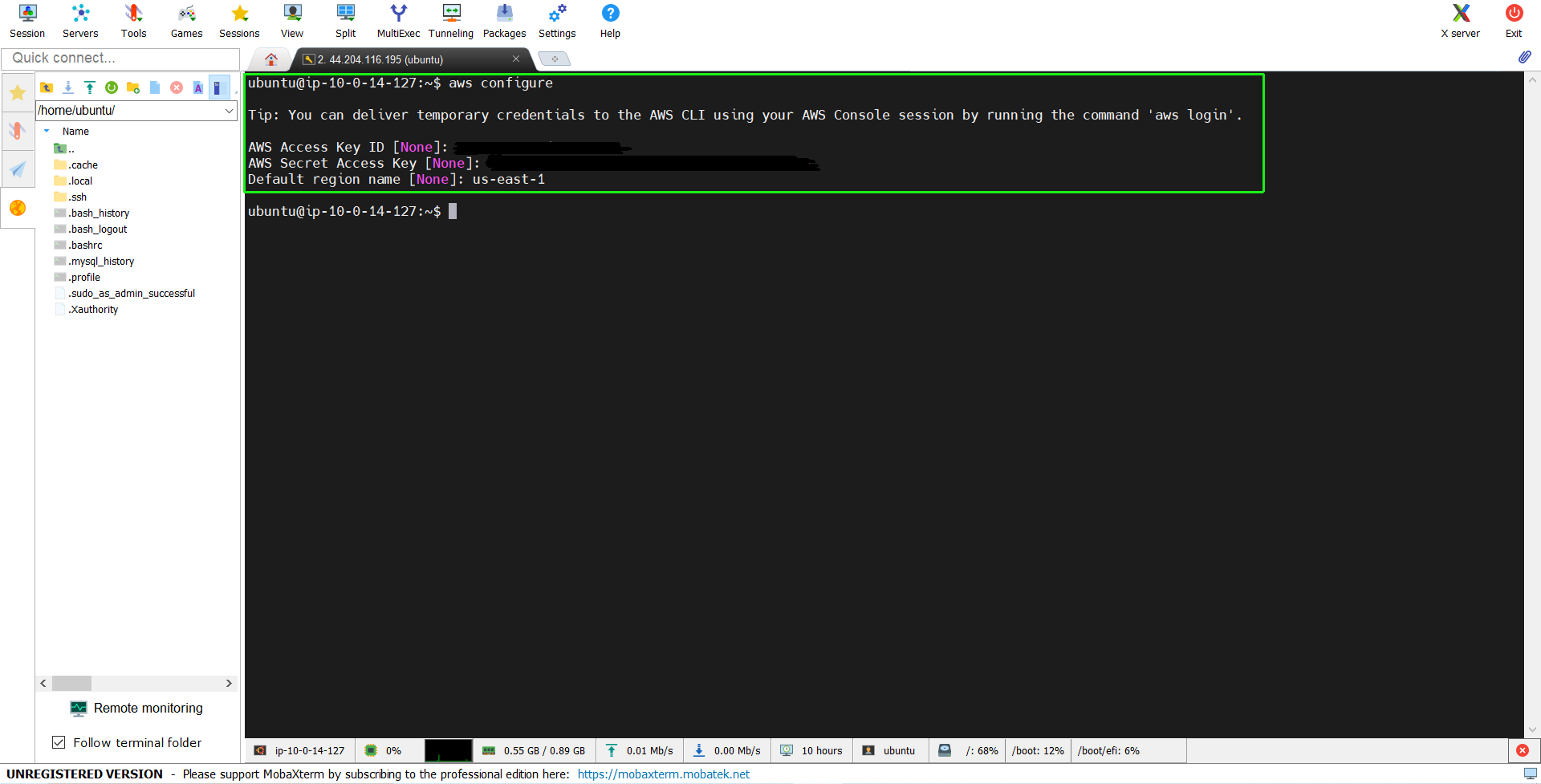
- Back to EC2 Instance, we need to use Root User to be able to log in to ECR with Docker.
Because when a user uses sudo to log in to ECR with Docker, the credential is saved in the HOME Dir of that user. But when you execute the push or pull command, it will see the credential in Root instead of in HOME Dir which was saved when logging in before.
- In AWS Console of push commands for aws-fcaj-container-app-frontend, run the following command to authenticate and log in to Amazon ECR from your local Docker environment. Before proceeding, ensure you have configured your AWS CLI default profile
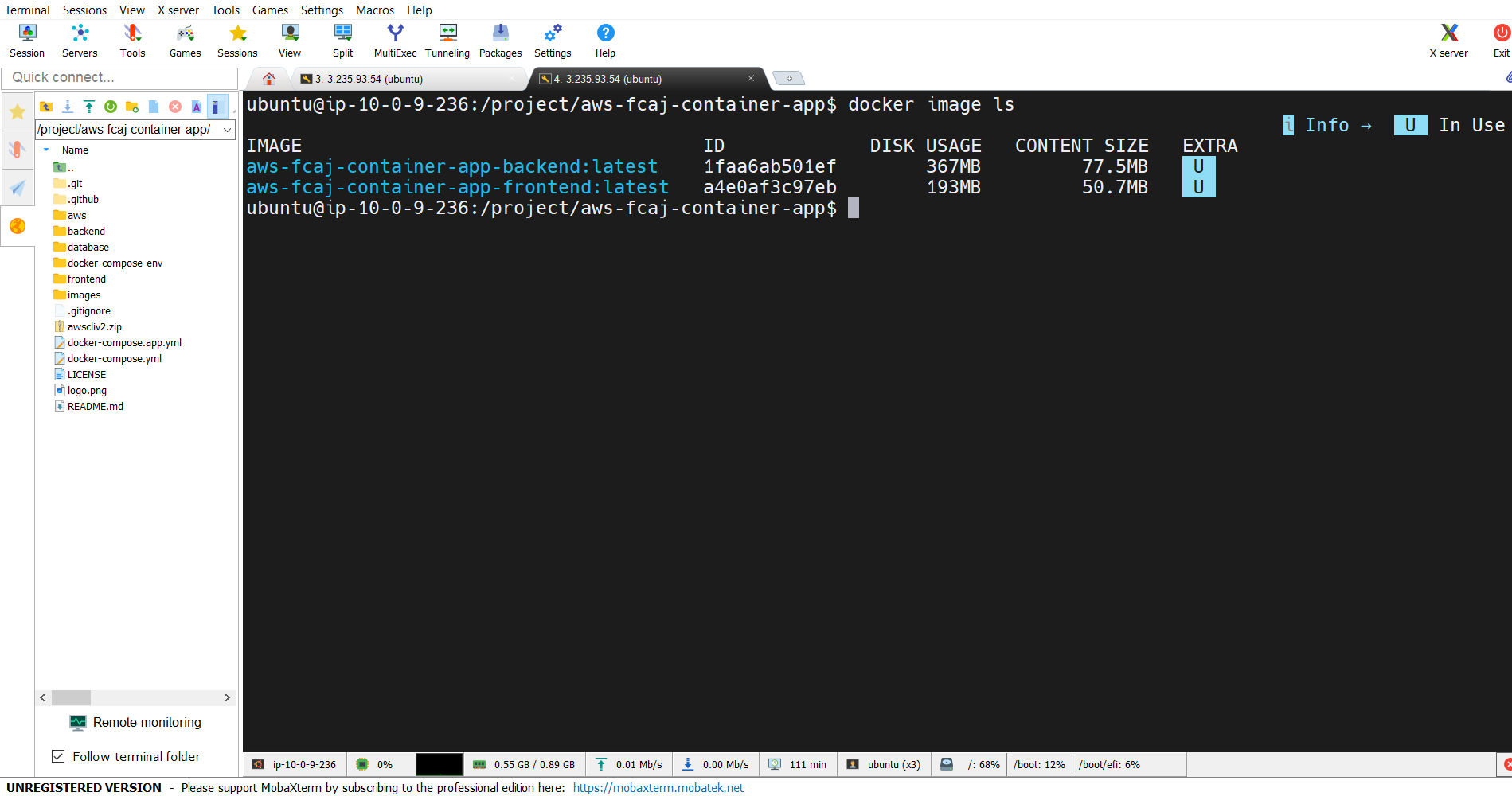
- List all available Docker images on your local machine
docker image ls
- In the AWS console of push commands for aws-fcaj-container-app-frontend:
Run the first command to retrieve an authentication token and authenticate your Docker client with your registry using the AWS CLI
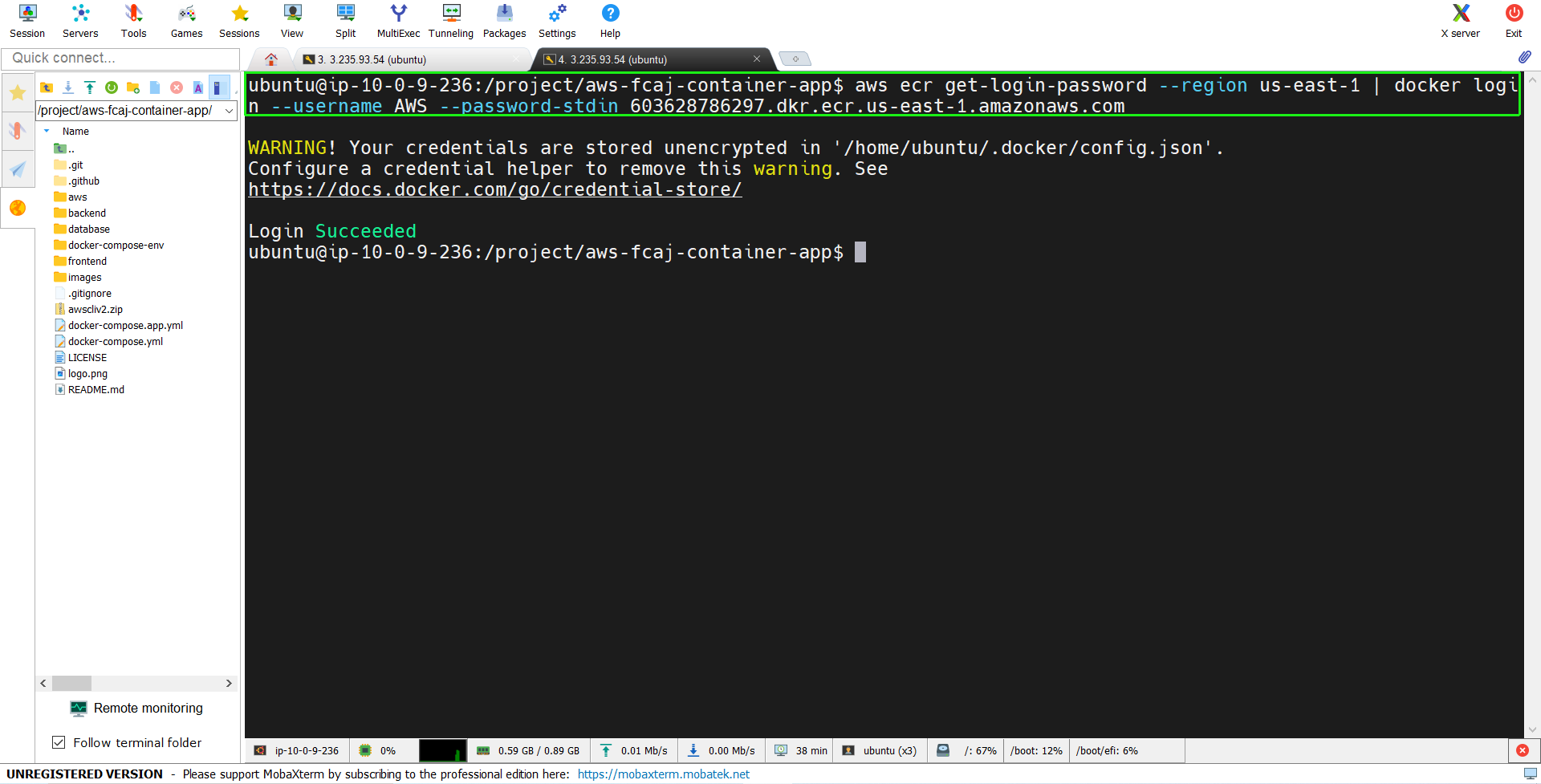
You can skip the second command as your frontend image is already built
Run the third command to tag your image.
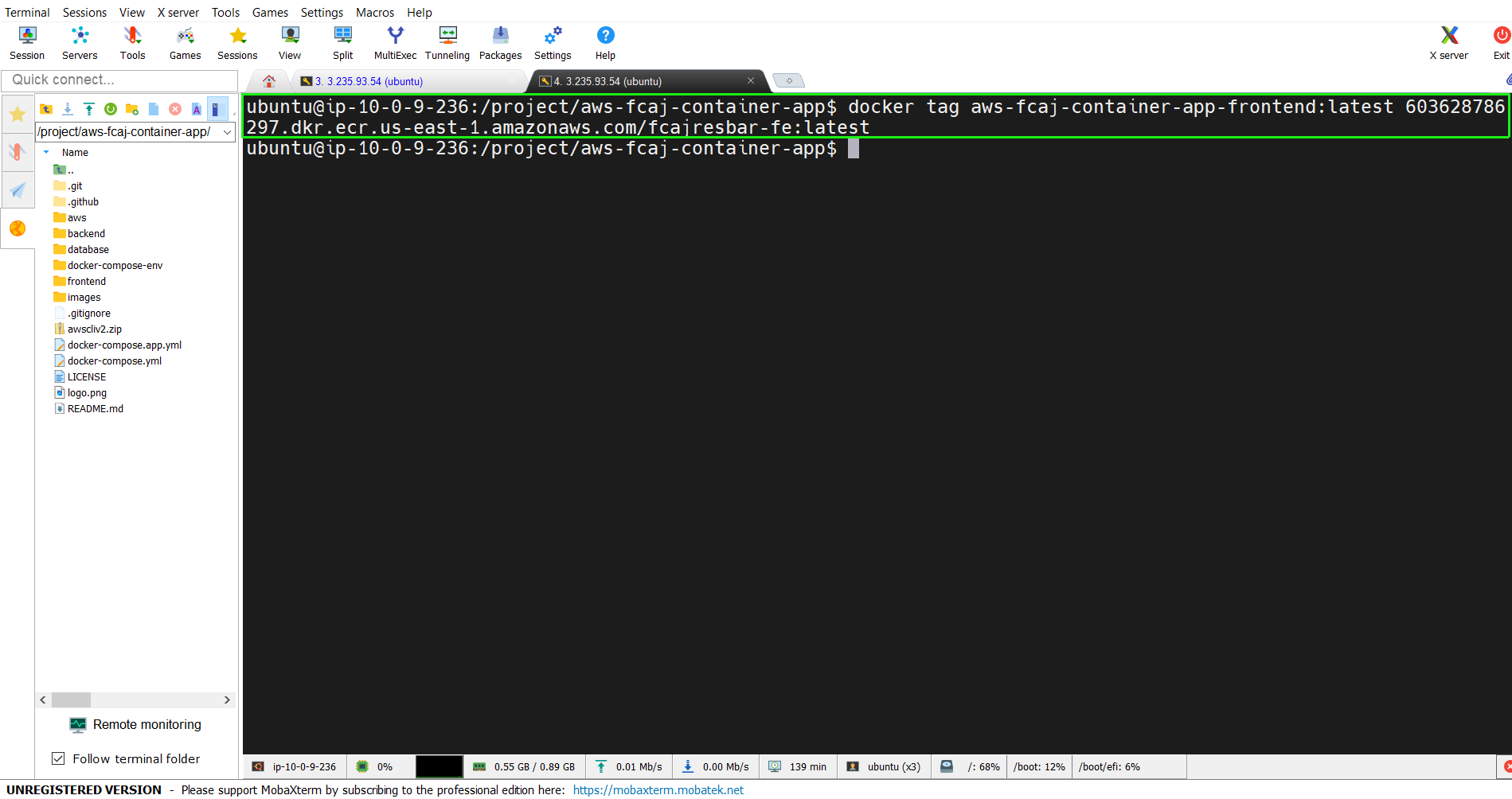
- Run the fourth command to push the image to your newly created AWS repository
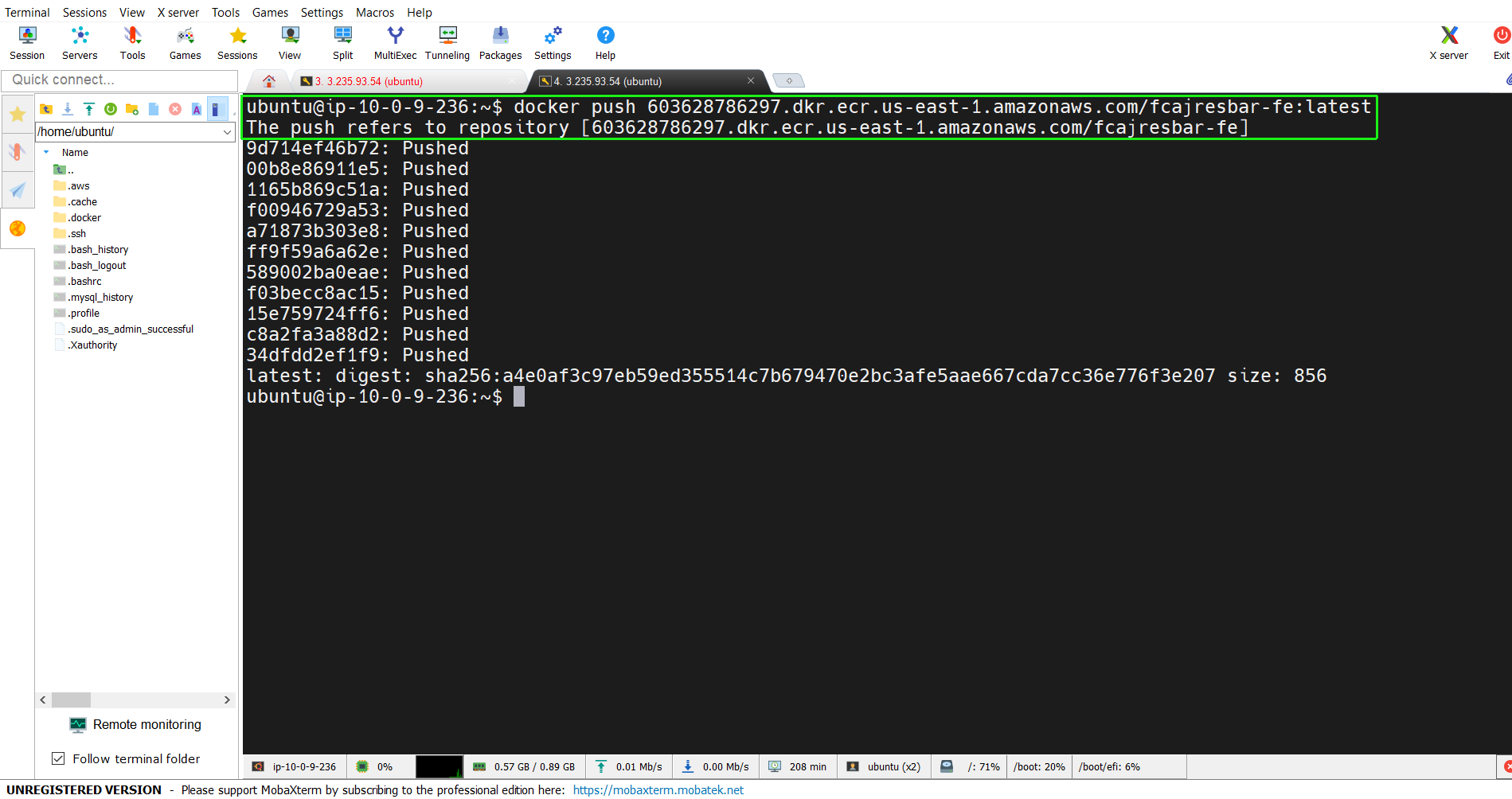
Push Backend Image to ECR
- Similarly, we will also view the push command of
aws-fcaj-container-app-backend, remember to copy the login command.
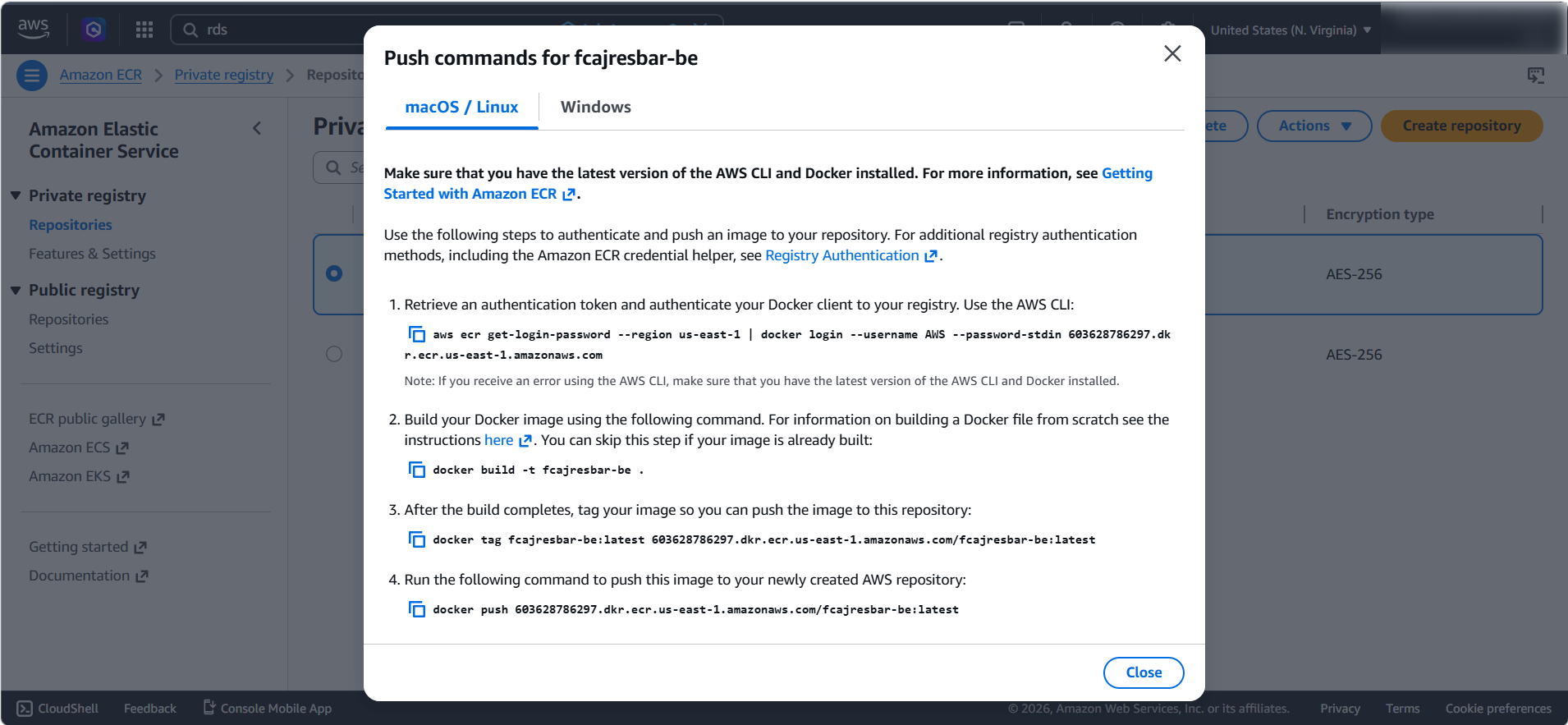
- Copy and run the login command (the first command) again to ensure your session is active.
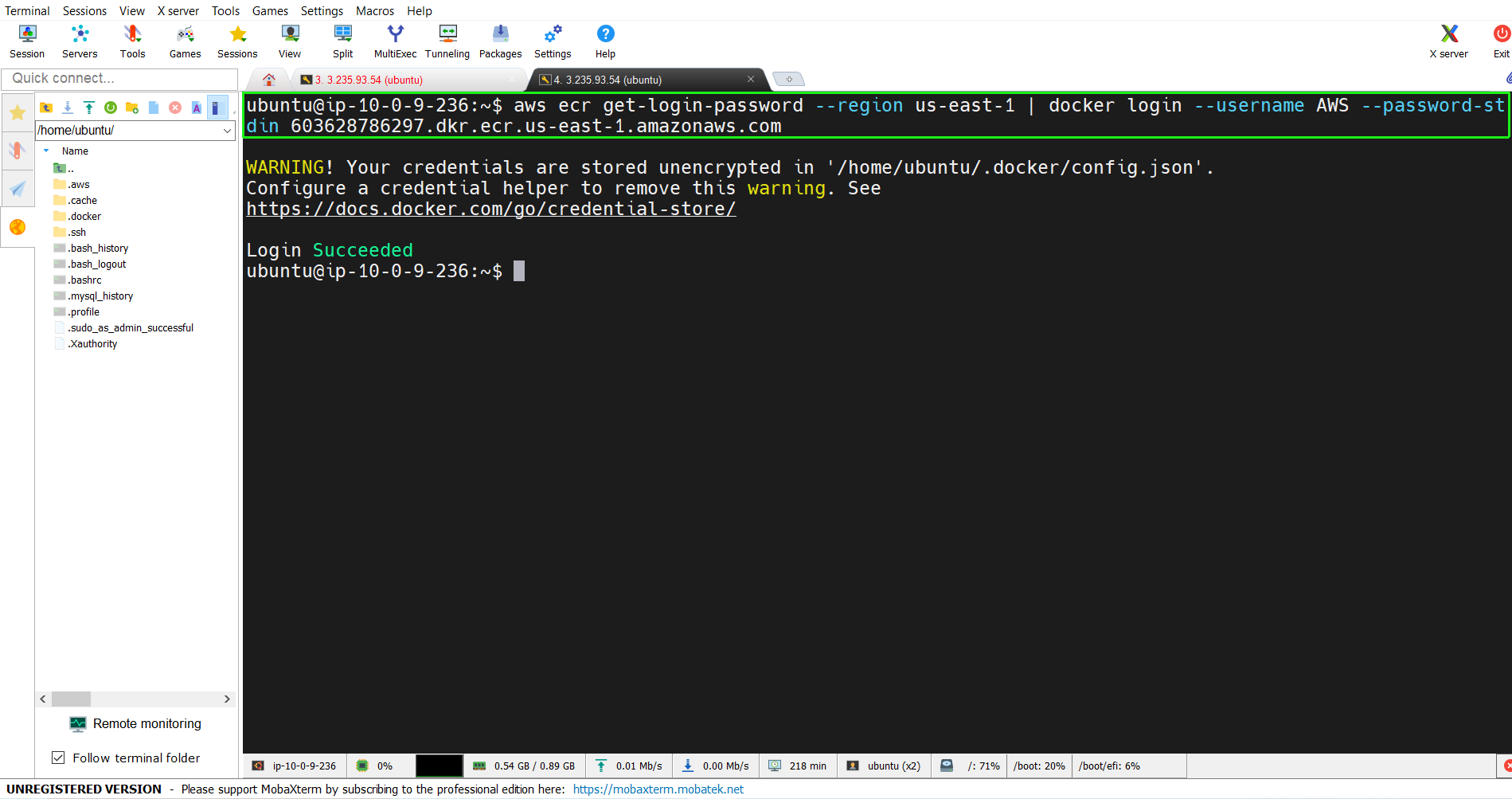
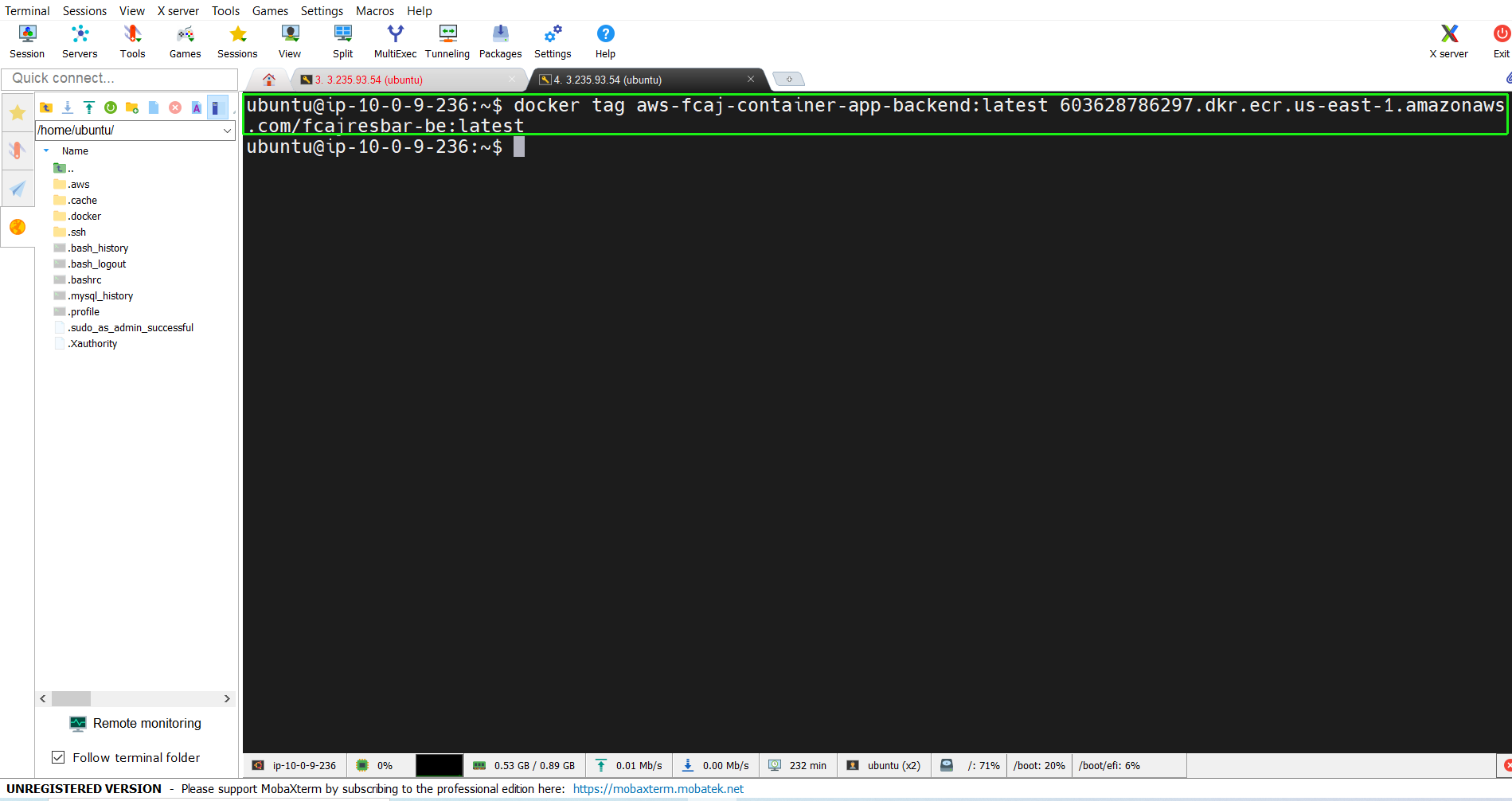
- Finally, execute the push command to upload your backend image to ECR.
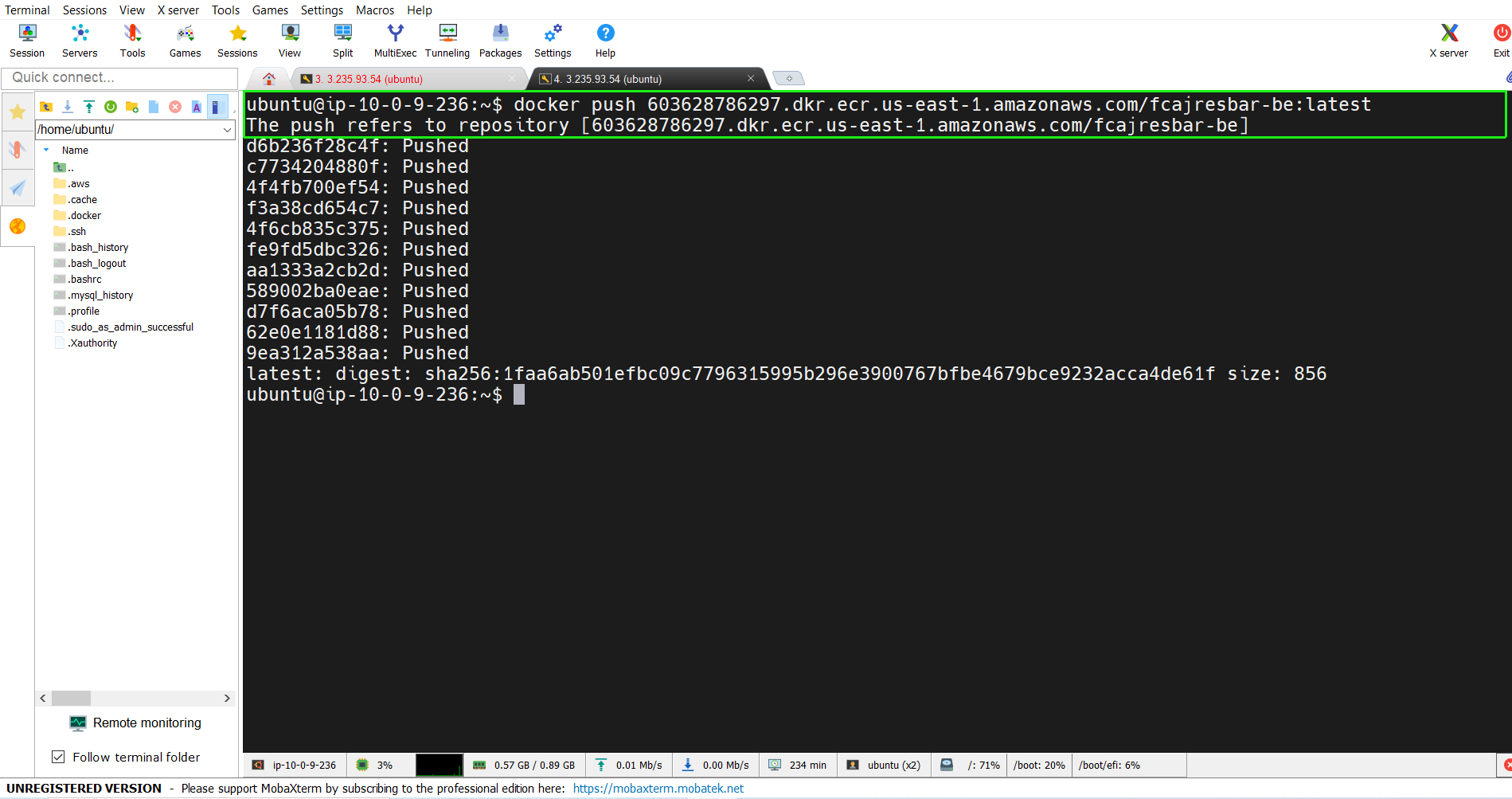
Check the result
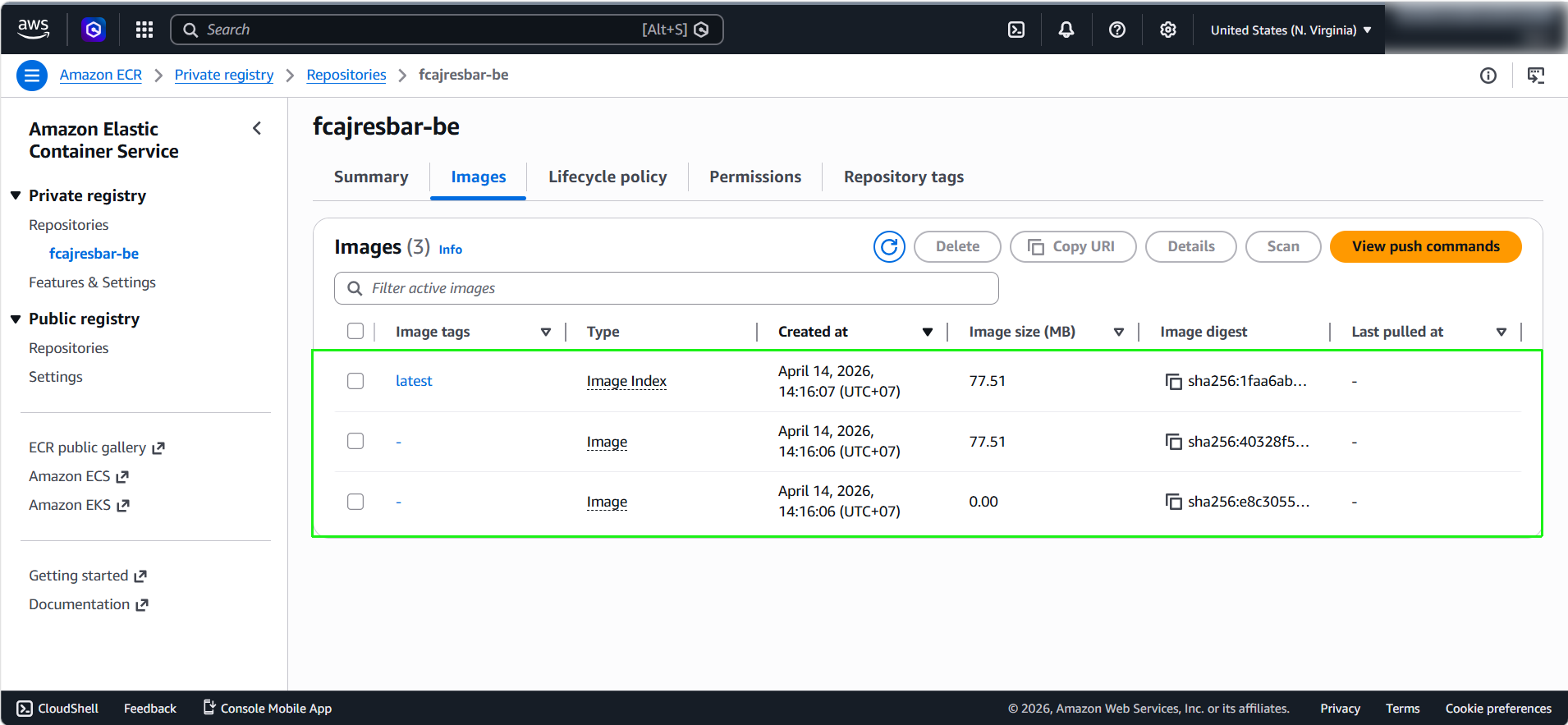
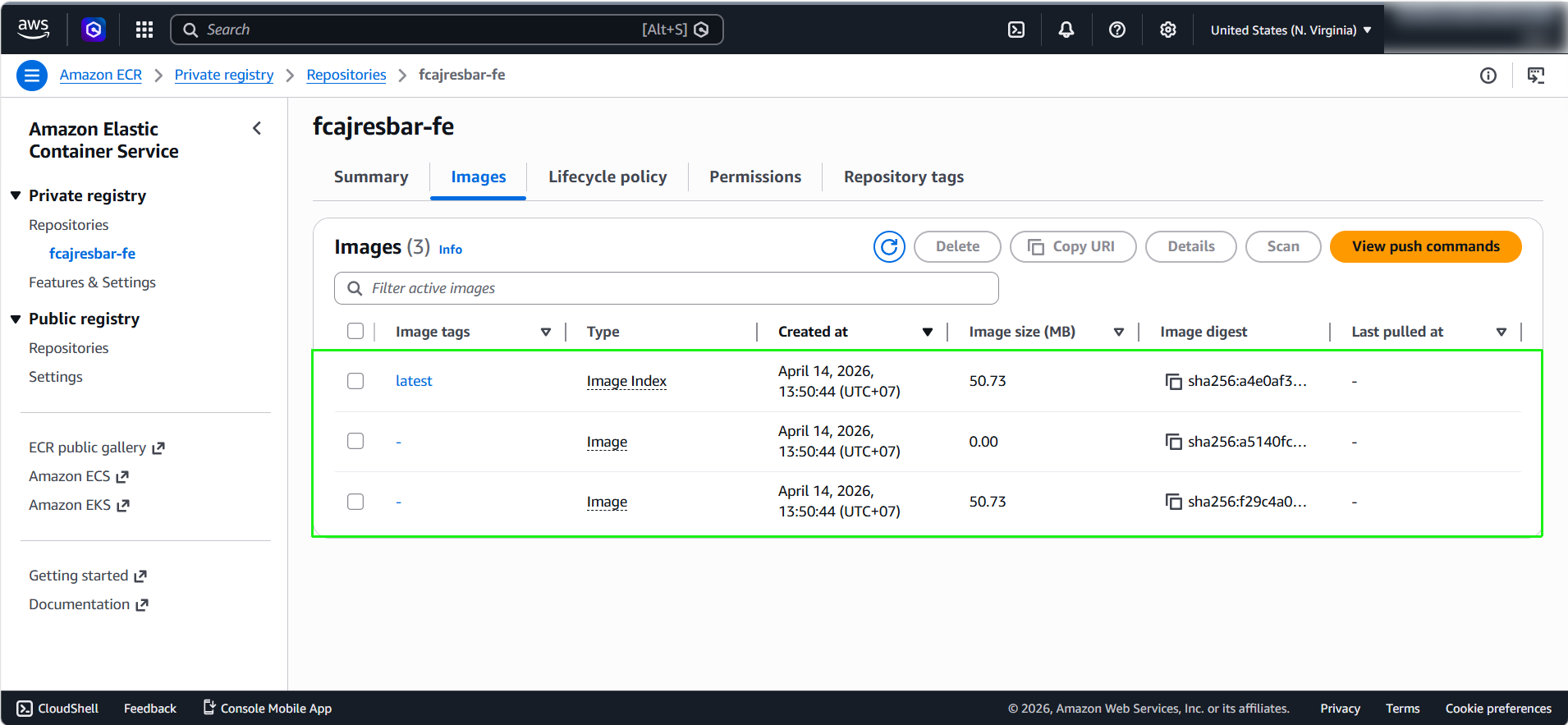
If successful, go to ECR Console, go to each repositories in turn, we can see the result here.